PostgreSQL is an open-source relational database system that uses and extends the SQL language. It is a back-end database for dynamic websites and web applications.
In this tutorial you’ll learn how to easily install and set up PostgreSQL on Ubuntu server.
Prerequisites for this tutorial:
- A machine running ubuntu (24.04 or other versions).
- A user account with root privileges.
Step-by-Step Guide to Installing PostgreSQL on Ubuntu
- Login into the machine with a user account with root privileges
Ensure that you are logged into your ubuntu server with a user account that has root privileges. - Update the package list
Updating the package list ensures that your system has the latest information about available software packages.
Run the following command:
sudo apt update as shown below.

- Install PostgreSQL
Once the package list is up to date install PostgreSQL by running the following command:
sudo apt install postgresql postgresql-contrib

- Verify PostgreSQL installation
To make sure its installed, use the following command;
sudo psql –version

- Check PostgreSQL status
Use the command below.
sudo systemctl status postgresql

- If not active (inactive (dead)), enable it by running this command; sudo systemctl start postgresql then sudo systemctl enable postgresql to make sure postgresql runs automatically after reboot of the server.

- Switch to the PostgreSQL user
Run the command below.
sudo -i -u postgres

- Open PostgreSQL prompt
Open PostgreSQL prompt by running this command; psql

Explore Common PostgreSQL commands
- Create a new database and user
While logged in as postgres user you can create a new database by using the below command.
CREATE DATABASE databasename;

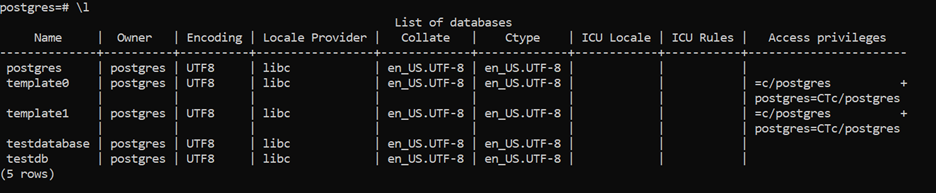
- Show all created databases
To show all available databases use this command; \l
- Create a new user
To create a user run the below command, replace username and password with your desired values.
CREATE USER username WITH PASSWORD ‘password’;

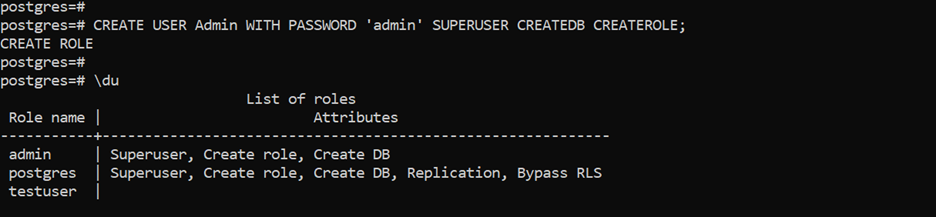
- To create a user with privileges such as create database use the below command.
CREATE USER admin WITH PASSWORD ‘admin’ SUPERUSER CREATEDB CREATEROLE;
then run \du to see the list of available users and their roles.
Conclusion
Congratulations! You have successfully installed and set up PostgreSQL. You can start building databases for your applications and explore more features about PostgreSQL.
